
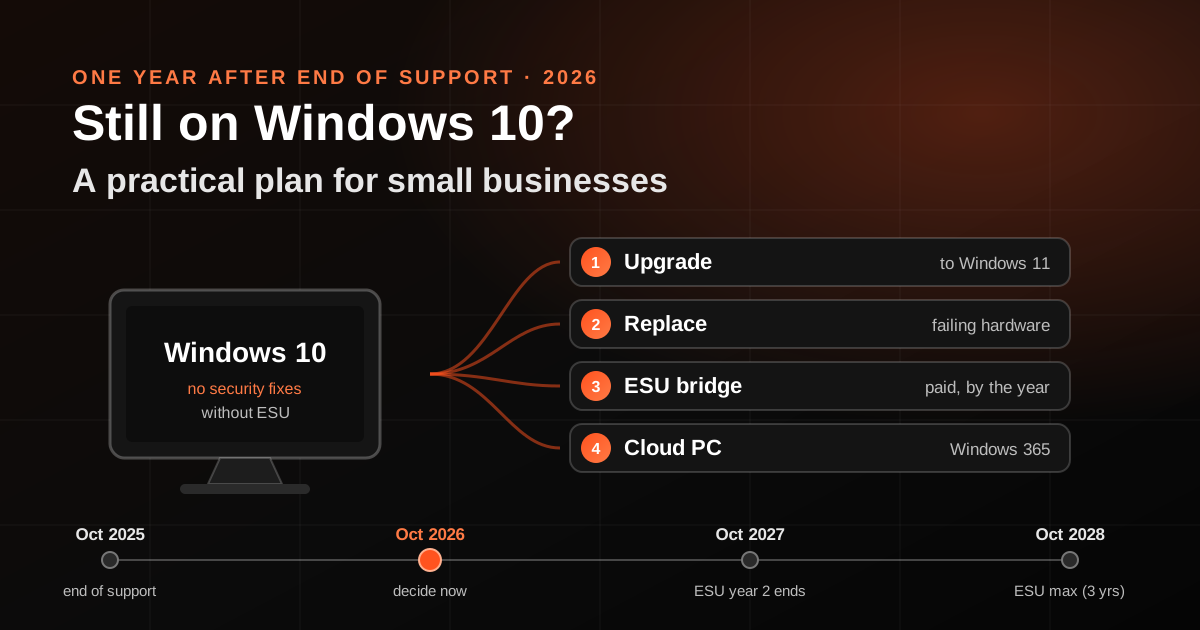
A year ago, on 14 October 2025, Windows 10 reached the end of support. In many small offices nothing visibly changed: the reception PC still boots and the accounts laptop still opens the accounting software.
That is exactly the problem. A PC that keeps working gives nobody a reason to act, so the decision drifts from month to month while the device stops receiving the fixes that keep it safe. If your business still has Windows 10 machines a year on, this is a practical plan for deciding what to do with each one, using Microsoft's own published rules rather than guesswork.
Direct Answer
Windows 10 PCs still work, but since 14 October 2025 Microsoft no longer provides security fixes, quality updates or technical support for them unless they are enrolled in the Extended Security Updates (ESU) programme. For a business, the realistic options for each device are: upgrade it to Windows 11 if the hardware qualifies, replace it, cover it with paid commercial ESU while you plan the move, or move the user to a cloud PC. Start with an inventory, upgrade what you can, budget for what you cannot, and treat ESU as a bridge with an end date, not a destination.
What Actually Changed After End of Support
Microsoft's lifecycle page for Windows 10 Home and Pro lists version 22H2 as the final release, with its support ending on 14 October 2025. Microsoft's ESU documentation says that from that date it stopped providing technical support, feature updates and quality updates, including security and reliability fixes, for those versions.
The PC does not lock you out. What disappears is the monthly patching that closes newly discovered holes. The unpatched machine is often the one with the most sensitive access: the bookkeeper's laptop, the shared front-desk PC with the email login, the machine that holds the customer spreadsheet.
The Four Options for Each Windows 10 PC
1. Upgrade it to Windows 11
This is the cheapest route when the hardware qualifies. Microsoft's published minimum requirements for Windows 11 include a compatible 64-bit processor with two or more cores at 1 GHz or faster, 4 GB of memory, 64 GB of storage, UEFI firmware that is Secure Boot capable, and TPM version 2.0. To upgrade directly, the Windows 10 device must be on version 2004 or later and have the September 2021 security update or a later one installed.
Older machines often fail on the processor or TPM check, which no setting will fix.
2. Replace it
For devices that fail the hardware check, replacement is usually the honest answer. The useful question is not "how old is it?" but "what does this machine do for the business, and what would it cost if it were compromised or failed on a busy day?" A ten-year-old PC that only drives a printer is a different case from a five-year-old laptop that holds banking access.
3. Pay for commercial ESU while you plan
ESU keeps critical and important security updates flowing to Windows 10 version 22H2 devices. According to Microsoft's ESU FAQ:
- Organisations buy it through Microsoft Volume Licensing, at USD 61 per device for year one
- The price doubles every consecutive year, for a maximum of three years
- It must be bought by the year; you cannot buy part of a year
- Year one started in November 2025, and ESU is cumulative, so if you join in year two you also pay for year one
- The minimum purchase is one licence
- It does not include new features, non-security fixes or general technical support
Put simply, a business joining now pays for two years at once. At Microsoft's published list prices that is USD 61 plus USD 122, or USD 183 per device, before tax and any reseller pricing in your country. For ten PCs that is about USD 1,830 just to keep them patched until late 2027. That can be right for a machine running software not yet supported on Windows 11, but compare it with the cost of replacement before you sign.
Commercial ESU is activated with a Multiple Activation Key that an administrator finds in the Microsoft 365 admin center and installs on each device, so somebody has to own the job of applying and checking it.
4. Move the user to a cloud PC
Microsoft says ESU is included at no additional cost for Windows 10 virtual machines in services such as Windows 365 and Azure Virtual Desktop. It also says Windows 10 devices that connect to Windows 365 Cloud PCs are entitled to ESU for up to three years while there is an active Windows 365 subscription. For some teams, especially those that already work mostly in a browser, a cloud PC is a cleaner bridge than keeping old hardware alive, but it is a new monthly cost and a new dependency on your internet connection, so weigh both.
A Note on Consumer ESU in a Business
Microsoft also runs a consumer ESU programme. Its page currently says enrolled devices are covered until 12 October 2027, and lists three ways to enrol: free if you sync your PC settings, by redeeming 1,000 Microsoft Rewards points, or a one-time purchase of USD 30, with one licence usable on up to ten devices.
It is tempting for a small office to use this, but Microsoft's page states that the consumer programme cannot be used in commercial scenarios. It is not offered on devices joined to Active Directory or Microsoft Entra, devices enrolled in mobile device management, or devices in kiosk mode. If a PC belongs to the business and is used for business work, plan around the commercial route, and ask your licensing partner if you are unsure how your devices are classified.
A One-Week Plan for Owners
You do not need a large IT project to get control of this. You need one person and one spreadsheet.
Day 1: Build the inventory
List every Windows device the business owns or pays for, including the ones that sit in a corner. For each, record:
- Who uses it and what it is used for
- Windows edition and version (Settings, then System, then About)
- Whether it passes the Windows 11 check in Microsoft's PC Health Check app
- What sensitive access it has: banking, payroll, email, customer data, admin passwords
- Any software or hardware it must run, such as a billing system, a scanner or a machine controller
Day 2: Sort every device into one of four groups
Upgrade now, replace, bridge with ESU, or retire. Be strict about the last group. Many offices find at least one machine that nobody actually needs any more.
Day 3: Check the awkward software
Before upgrading, confirm that each business-critical application is supported on Windows 11. Ask the vendor in writing. Older accounting tools, device drivers and locally installed industry software are the usual blockers.
Day 4: Protect the data first
Before any upgrade or replacement, make sure the data on the machine is backed up somewhere the business controls, and that you know the logins it holds. This is also the moment to remove saved passwords from shared browsers and to switch on two-step verification for the accounts those machines touch.
Day 5: Schedule and assign
Put the upgrades in the calendar, one or two machines at a time, outside busy periods. Give each device an owner who checks that it comes back working. For ESU devices, write down the date coverage ends and the plan for what replaces them before then.
Interim Precautions for Machines That Must Stay on Windows 10
Sometimes a machine has to stay for a while. If so, reduce what it can damage:
- Keep it on Windows 10 version 22H2 with every update installed up to the end of support, then enrol it in ESU if it will stay beyond a short window
- Stop using it for email, web browsing and banking where possible
- Give it a standard user account for daily work, not an administrator account
- Keep important files off its local disk and in a backed-up business location
- Set a replacement date and put it in someone's diary
These steps reduce risk; they do not replace patching.
Notes for Businesses Across the Gulf and India
In owner-led businesses across the Gulf and India, the Windows 10 machines that linger tend to be the ones attached to something specific: a local accounting package, a VAT or GST filing workflow, a CCTV recorder, or a machine bought by a branch office years ago. Licensing purchases also usually go through a local reseller, so ESU prices will appear in local currency with local tax. Include branch offices and family-run entities in the inventory, and ask your reseller to quote ESU and replacement side by side so the decision is made on real numbers.
How Reji.pro Can Help
Reji.pro works with owner-led businesses on practical technology decisions, including device and software inventories, upgrade sequencing and vendor questions before a migration. The first step is understanding what each machine actually does for the business; any upgrade, purchase or licensing change is then scoped and agreed separately.
Sources
Microsoft Learn, Windows 10 Home and Pro, Microsoft Lifecycle: learn.microsoft.com/lifecycle/products/windows-10-home-and-pro
Microsoft Learn, Extended Security Updates (ESU) program for Windows 10: learn.microsoft.com/windows/whats-new/extended-security-updates
Microsoft Learn, Enable Windows 10 Extended Security Updates (ESU): learn.microsoft.com/windows/whats-new/enable-extended-security-updates
Microsoft, Windows 10 Consumer Extended Security Updates (ESU): microsoft.com/windows/extended-security-updates
Microsoft Learn, Windows 11 requirements: learn.microsoft.com/windows/whats-new/windows-11-requirements
Frequently Asked Questions
Will my Windows 10 PC stop working?
No. Microsoft says Windows 10 PCs continue to work after end of support. What stops is security and quality updates and technical support, unless the device is enrolled in ESU.
Can a small business use the free consumer ESU option?
Microsoft's consumer ESU page says the programme cannot be used in commercial scenarios and is not offered on domain-joined, Entra-joined or MDM-managed devices. Business-owned PCs used for work should use the commercial programme or another option.
How long can a business keep Windows 10 secure with ESU?
Microsoft says enrolled commercial devices can receive security updates for a maximum of three years after end of support, with the price doubling each year. It is designed as a bridge to Windows 11, not a permanent solution.
What if a PC cannot run Windows 11?
Check whether the failing requirement is the processor or TPM, which usually cannot be fixed, or a setting such as Secure Boot, which sometimes can. If the hardware does not qualify, the realistic choices are replacement, a cloud PC, or ESU for a limited period.
Global Malayali digital transformation consultant and mentor with 25+ years across web technology, SaaS, hosting, automation, infrastructure, and customer operations. Founder of Hostao, AutoChat, RatingE, and BestEmail.
Have one business workflow that needs to improve?
Describe the customer, operations, or team-workflow problem first. The next step may be diagnosis, mentorship, a focused implementation scope, or another specialist.