
Most small businesses believe they have backups. The files are "in the cloud", the laptops sync, and the website host mentions backups somewhere. Then a shared folder is deleted by mistake, a laptop is stolen, or ransomware encrypts everything a user can reach, and the owner discovers which of those beliefs were true.
A backup plan is not proven by the existence of copies. It is proven by a restore. This is a restore-first backup plan a founder or office manager can draft in an afternoon and test every quarter, based on guidance from Microsoft, Google, the UK National Cyber Security Centre (NCSC) and the US Cybersecurity and Infrastructure Security Agency (CISA).
Direct Answer
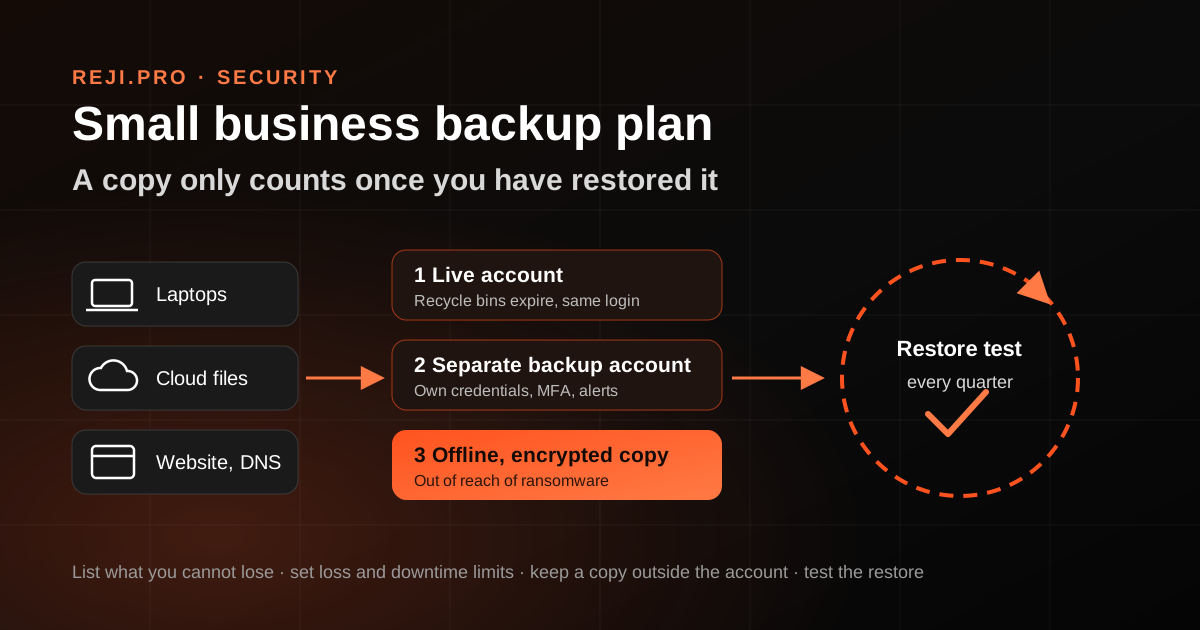
A practical small business backup plan has five parts: a list of the data the business cannot lose, a decision about how much data and downtime each system can tolerate, at least one copy kept outside the main account and out of reach of everyday logins, separate protection for the backups themselves, and a scheduled restore test. Sync, recycle bins and version history help with small mistakes, but they are not a backup plan on their own. CISA's advice is to keep offline, encrypted backups of critical data and to test them regularly in a disaster recovery scenario.
Why Sync, Recycle Bins and Version History Are Not Enough
Cloud storage gives you useful safety nets, and it is worth knowing exactly how long they last.
- Google Drive: Google's help page says files moved to the Trash are deleted forever after 30 days, and that if you mirror or stream files between Drive and your computer, anything you put in the trash is put in the trash everywhere.
- OneDrive: Microsoft says its Restore your OneDrive feature lets Microsoft 365 subscribers undo all actions on files and folders within the last 30 days, including deletion, overwriting, corruption or malware infection.
- SharePoint in Microsoft 365: Microsoft says deleted items are retained for 93 days from the time they are deleted, across the site Recycle Bin and the site collection Recycle Bin, unless they are purged earlier.
These are good features with three limits: they work only while you can still sign in to the account, they are reachable by the same admin login an attacker would target, and they have a clock. A problem noticed after the window has no undo.
Microsoft's own Services Agreement is direct about the account risk: it says you should have a regular backup plan because Microsoft will not be able to retrieve your content once your account is closed.
Sync also copies mistakes as faithfully as it copies work. If ransomware encrypts files on a synced laptop, the change travels to the cloud.
Step 1: List What the Business Cannot Lose
For each item, write down where it lives and who owns it.
- Customer and sales records: CRM, quotes, contracts, order history
- Finance: accounting software data, invoices, VAT or GST filings, payroll exports, bank statements
- Shared files: proposals, templates, designs, HR records
- Email: mailboxes for owners, sales and support, plus shared inboxes
- The website: files, database, uploaded media and the content management login
- Domain and DNS: an exported copy of the DNS zone and a record of the registrar account
- Credentials: the password manager vault and its recovery details
- Laptops and phones: anything stored only on a device, which is often more than people admit
If you have not confirmed who controls the domain, DNS, hosting and email accounts, do that first. A backup nobody can sign in to is no backup.
Step 2: Decide How Much Loss and Downtime Each System Can Take
For every item on the list, answer two plain questions.
First, how much recent work could you afford to redo? If the answer for accounting is "one day", the backup must run at least daily. If a design folder changes weekly, weekly may be fine.
Second, how long could you work without it? An online shop may need its website back within hours; an archive can wait a week.
IT teams call these the recovery point and recovery time objectives. Write the answers down; they decide how often backups run and how fast a restore must be.
Step 3: Keep a Copy Outside the Main Account
The most common gap is that every copy lives inside one account, behind one password. If that account is compromised, deleted or locked, every copy goes with it.
Keep at least one further copy somewhere different: another provider or location, with credentials not used day to day and, for critical data, offline or locked against changes for a set period. CISA explains why: many ransomware variants try to find and then delete or encrypt any backups they can reach, so that restoration is impossible unless the ransom is paid.
For a small team, this usually means one of three things:
- A dedicated third-party backup service for Microsoft 365 or Google Workspace, with its own admin login
- A backup of key folders and exports to separate cloud storage that does not sync back to the office
- An encrypted external drive that is connected for the backup, then disconnected and stored securely
The NCSC's 2026 small organisations guide covers both online backups and external devices, and notes the device itself must be kept safe. Encrypt it: a lost drive full of customer data is a breach, not a backup.
Step 4: Cover the Places People Forget
Most plans cover shared files and stop. The painful losses usually come from elsewhere.
- Website: confirm what your host backs up, how long copies are kept and how to request a restore, and keep your own periodic copy of the files and database.
- DNS: export the zone file after every change; rebuilding SPF, DKIM and DMARC records from memory is slow and error-prone.
- Accounting software: use its own backup or export feature and store the export with your other backups.
- Password manager: check its export and recovery options, and keep the recovery kit offline in a sealed, known place.
- Laptops: either keep work files in a backed-up company location, or back up the device itself. A laptop that holds the only copy of anything is a single point of failure.
- Rebuild kit: CISA recommends "golden images" of critical systems. For a small office, the practical version is a written list of installers, licence keys and settings for setting up a replacement PC.
Step 5: Protect the Backups Themselves
Backups are a target, so treat them like one.
- Use separate credentials for the backup service, with multi-factor authentication turned on
- Limit who can delete backups or change retention, ideally to one owner and one deputy
- Encrypt backups and record where the recovery key is kept
- Send failed-backup alerts to a named person, not an unwatched shared inbox
- Review the backup admin list whenever someone leaves the business
Step 6: Run a Restore Test Every Quarter
CISA advises testing backup procedures regularly and checking the availability and integrity of backups. A quarterly drill of about an hour is realistic for most small businesses:
- Pick one item, rotating each quarter: a mailbox, a folder, the website, the accounting data
- Restore it to a separate location, not over the live copy
- Open several files and confirm they are the right version and are not corrupted
- Time the restore from start to finish and compare it with the downtime you said you could accept
- Note what was missing: a password nobody knew, a step that was not written down, an export that had stopped running
- Fix the gaps and record the date, the result and the next test date
The first test usually uncovers something, which is why it belongs on a quiet Tuesday rather than in the middle of an incident.
A One-Page Backup Plan Template
Fill in one block per system:
- System: for example, accounting software
- Business owner: the person who decides what matters
- Technical contact: internal staff member or provider
- Data and location: what is stored and where
- Acceptable data loss: for example, one working day
- Acceptable downtime: for example, four hours
- Backup method and frequency: what runs, how often, and where the copy goes
- Copy outside the main account: yes or no, and where
- Offline or locked copy: yes or no
- Who can delete backups: names
- Last restore test: date and result
- Next restore test: date
Keep a printed copy too, in case systems are down.
Notes for Businesses Across the Gulf and India
Owner-led businesses in the Gulf and India often run across several entities, branches or family-managed companies, each with its own email accounts and accounting files. Put every entity on the list, not just head office. Where internet connections at branches are unreliable, the NCSC's point about using an external storage device applies, but keep it encrypted and collected from the branch on a fixed schedule. Check record-keeping obligations with your accountant so retention settings do not delete records you must keep.
How Reji.pro Can Help
Reji.pro works with owner-led businesses on practical technology decisions, including ownership and access audits, backup and recovery planning and vendor questions. The work starts with what the business cannot afford to lose; any tool purchase or configuration change is scoped and agreed separately.
Sources
CISA, #StopRansomware Guide: cisa.gov/stopransomware/ransomware-guide
NCSC, Small organisations guide to cyber security, Backing up your data: ncsc.gov.uk/collection/small-organisations-guide-to-cyber-security/backing-up-your-data
Google Drive Help, Delete files in Google Drive: support.google.com/drive/answer/2375102
Microsoft Support, Restore your OneDrive: support.microsoft.com/onedrive/restore-your-onedrive
Microsoft Support, Restore deleted items from the site collection recycle bin: support.microsoft.com/sharepoint/admin/restore-deleted-items-from-the-site-collection-recycle-bin
Microsoft Services Agreement: microsoft.com/servicesagreement
Frequently Asked Questions
Is OneDrive or Google Drive a backup?
They provide useful recovery features, such as recycle bins and restore windows, but those features sit inside the same account and expire. Google says Drive trash is emptied after 30 days, and Microsoft says Restore your OneDrive covers the last 30 days. Keep at least one copy outside the main account for critical data.
What is an offline backup?
It is a copy that cannot be reached from your network or everyday accounts, such as an encrypted external drive that is disconnected after each backup. CISA recommends offline, encrypted backups because ransomware often tries to delete or encrypt any backups it can reach.
How do I know my backups work?
Restore something. Pick one system each quarter, restore it to a separate location, open the files, time the process and write down what went wrong. A backup that has never been restored is an assumption.
Global Malayali digital transformation consultant and mentor with 25+ years across web technology, SaaS, hosting, automation, infrastructure, and customer operations. Founder of Hostao, AutoChat, RatingE, and BestEmail.
Have one business workflow that needs to improve?
Describe the customer, operations, or team-workflow problem first. The next step may be diagnosis, mentorship, a focused implementation scope, or another specialist.